This guide walks through setting up Hiroba, with a screenshot of each screen along the way. There are four steps: install the app, sign in, create your organization, and invite your teammates. The whole thing takes about ten minutes, and the people you invite don't need to install anything. They can join the same office from their browser.
1. Install the app
Start by installing Hiroba on the computer of whoever is setting up the office. Get the macOS or Windows installer from the download section.
You can also install it from the command line:
- macOS: run
brew tap ludo-technologies/hiroba, thenbrew trust ludo-technologies/hiroba, thenbrew install --cask hiroba. (On Homebrew versions before 6, skipbrew trust.) - Windows: run
winget install hiroba.
Hiroba updates itself, so you only install it once.
2. Sign in
When you open the app, you'll see the sign-in screen. There are three ways to sign in:
- A Google account
- A GitHub account
- An email address (you'll enter a 6-digit code we send you)
This guide uses an email address. Type it in and click "Email me a code".
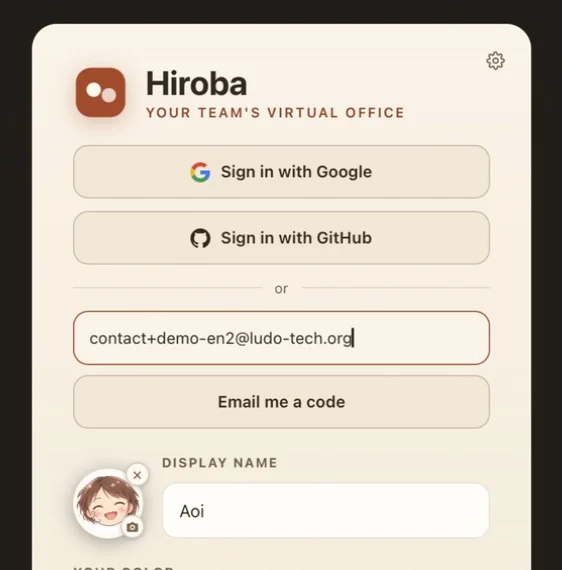
At the bottom of the sign-in screen you can also set your display name and avatar color. Your display name is what teammates see in the office, and you can change it at any time.
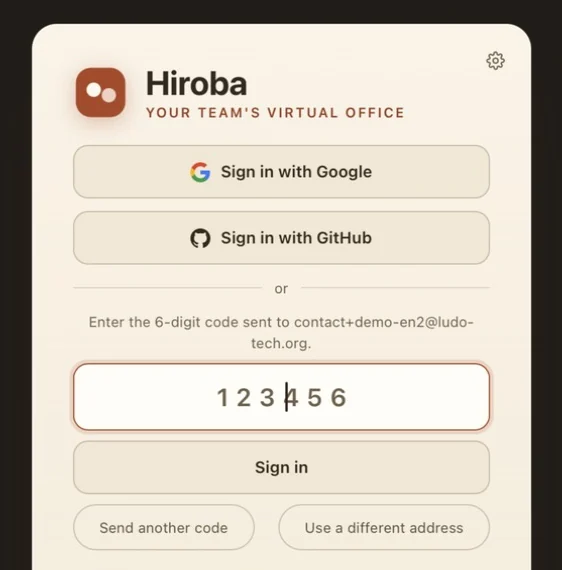
You'll receive an email titled "Your Hiroba login code". Enter the 6-digit code from it. Sign-in continues on its own as soon as all six digits are in. The code expires after 10 minutes. If it doesn't arrive, check your spam folder or click "Send another code".
3. Create your organization
The first time you sign in, Hiroba asks you to name your organization. An organization is the office your team shares. Enter your company or team name and click "Create organization".
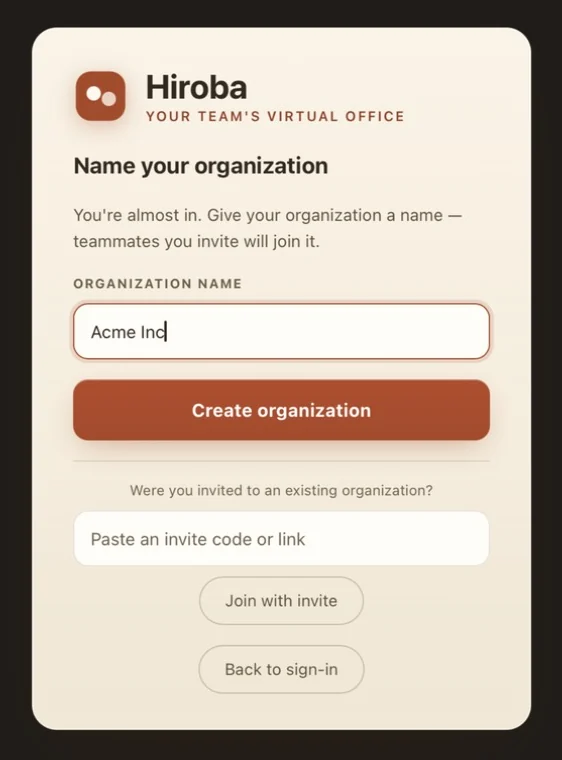
Creating the organization starts your 30-day free trial automatically. There's no card to enter, and no limit on people or features during the trial.
If a teammate has already invited you, you don't need to create an organization. Paste the invite code or link into the field under "Were you invited to an existing organization?" and click "Join with invite".
4. Invite your teammates
Right after the organization is created, you'll see "Invite your teammates". Enter the email addresses of the people you want to invite and click "Send invites", and each of them gets an email with a link to join. To invite several people at once, separate the addresses with commas, like [email protected], [email protected].
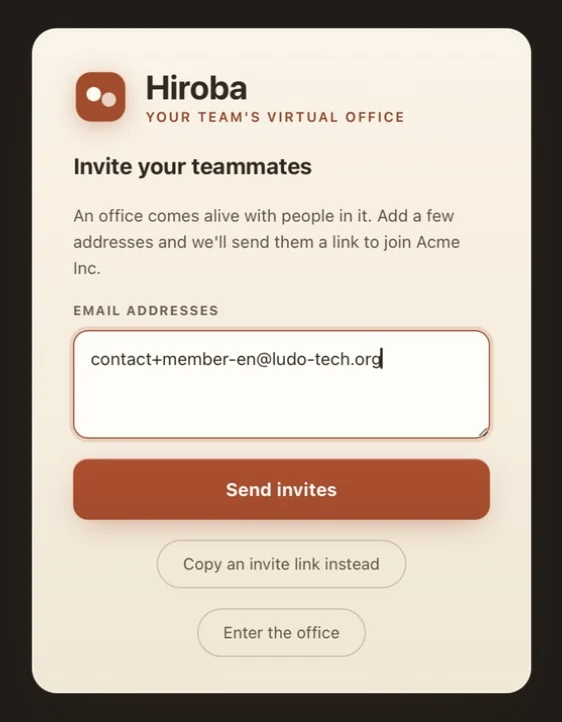
Once the invites are sent, a confirmation appears under the button.
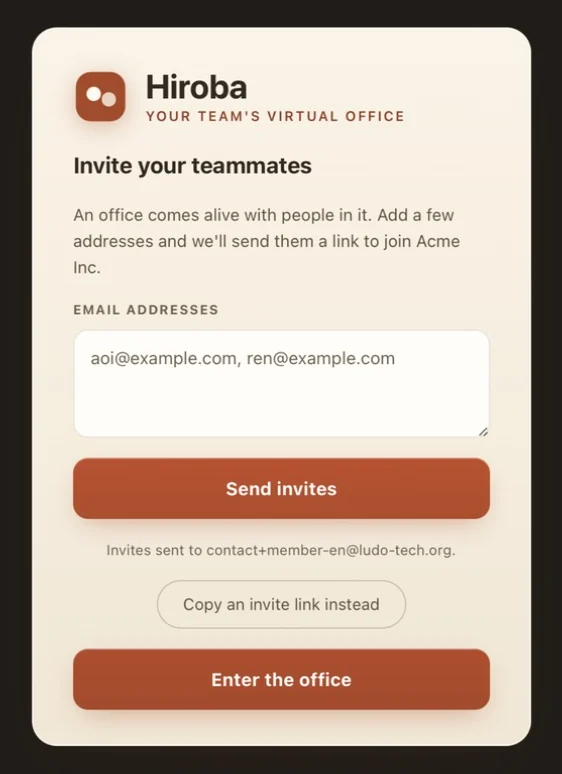
If you'd rather share the invitation in Slack or another chat, click "Copy an invite link instead" and paste the link there. You can always invite people later, so there's no need to invite everyone now.
5. Enter the office
Click "Enter the office" to step into your new office. The sidebar on the left shows your organization's name, the days left in your trial, and who's here. For now, that's just you.
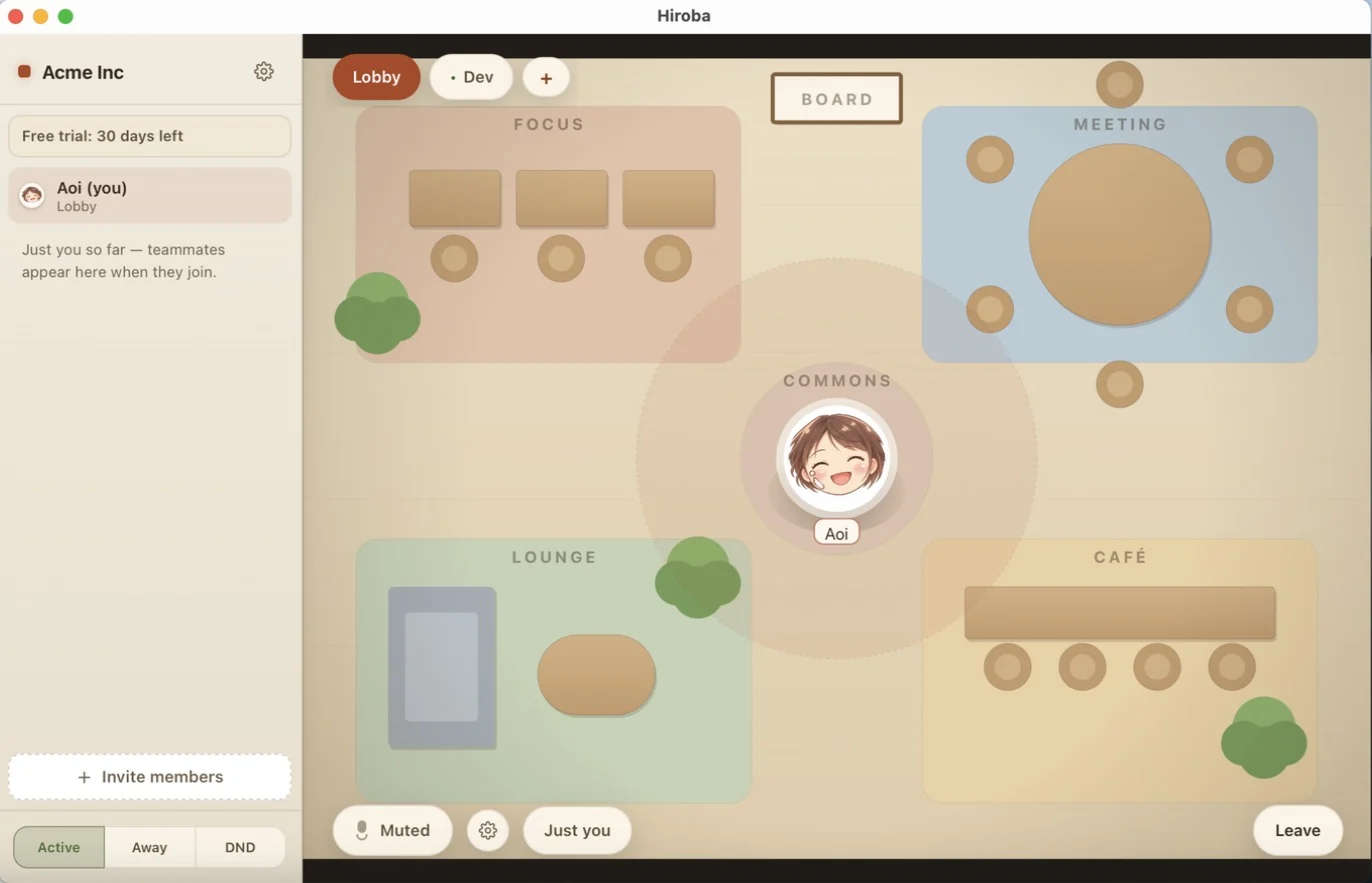
Move your avatar with WASD or the arrow keys, or click anywhere on the floor to walk there. Walk up to someone to start talking. You join muted, so click the microphone button or press M when you want to speak.
6. Invite more people later
To invite people after you're in the office, click "Invite members" at the bottom of the sidebar. You can also open the gear menu at the top of the sidebar and choose "Manage invitations".
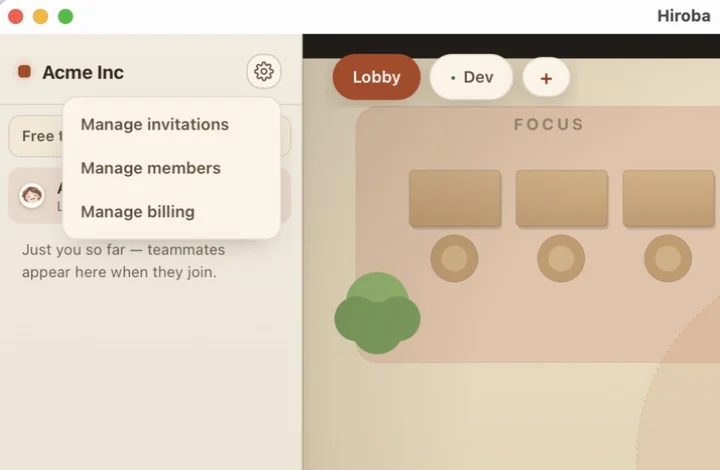
"Manage invitations" gives you two ways to invite someone:
- Send by email: enter addresses in the top field and click "Send invites".
- Issue a link: choose a role ("Member" or "Admin"), click "Issue invite", then click "Copy link" or "Copy code" and send it to the person.
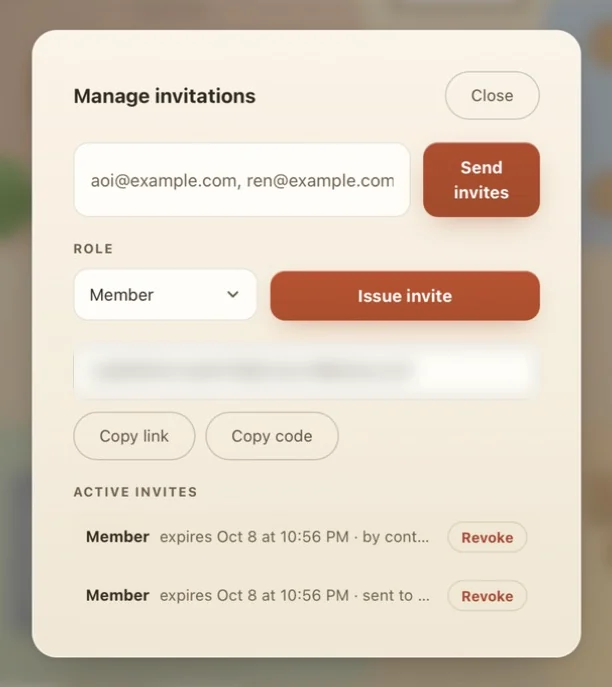
Invites expire 7 days after they're issued. Unused invites are listed under "Active invites", and you can cancel any of them with "Revoke". People invited with the Admin role can invite others and manage members too.
7. How invited teammates join
This part is for the person who received the invite. (If an invite email doesn't show up, check the spam folder.) Opening the link from the email or chat shows this page:
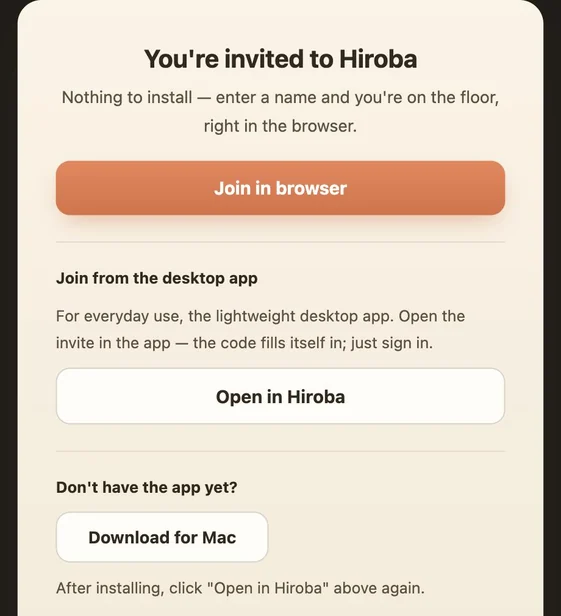
There are two ways to join.
Join in the browser (nothing to install)
Click "Join in browser" and Hiroba opens in your browser. Pick a display name and color, click "Enter Hiroba", and you're in. No sign-in needed. When you just want someone to try it, this is the easiest way.
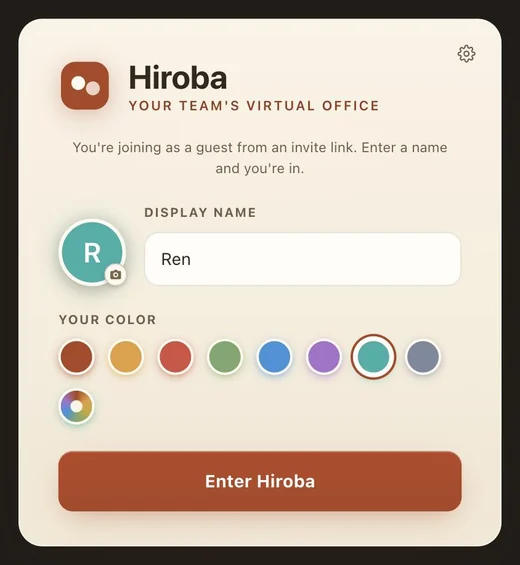
Once you're in, you're on the same floor as the person who invited you, and they show up in your sidebar with a "Call" button next to their name.
Join from the desktop app
For everyday use, we recommend the desktop app. If you don't have it yet, install it with the download button under "Don't have the app yet?" (it matches your operating system), and then click "Open in Hiroba". The app opens with the invite code already filled in, so all that's left is signing in with Google, GitHub, or your email address.
If the app doesn't open, click "Copy code" under "If nothing opens" on the invite page and paste the code into the "Invite code (optional)" field on the app's sign-in screen.
Once they've joined
Your teammate appears in your office right away. Walk up to them to talk, or use "Call" in the sidebar to reach someone in another part of the office.
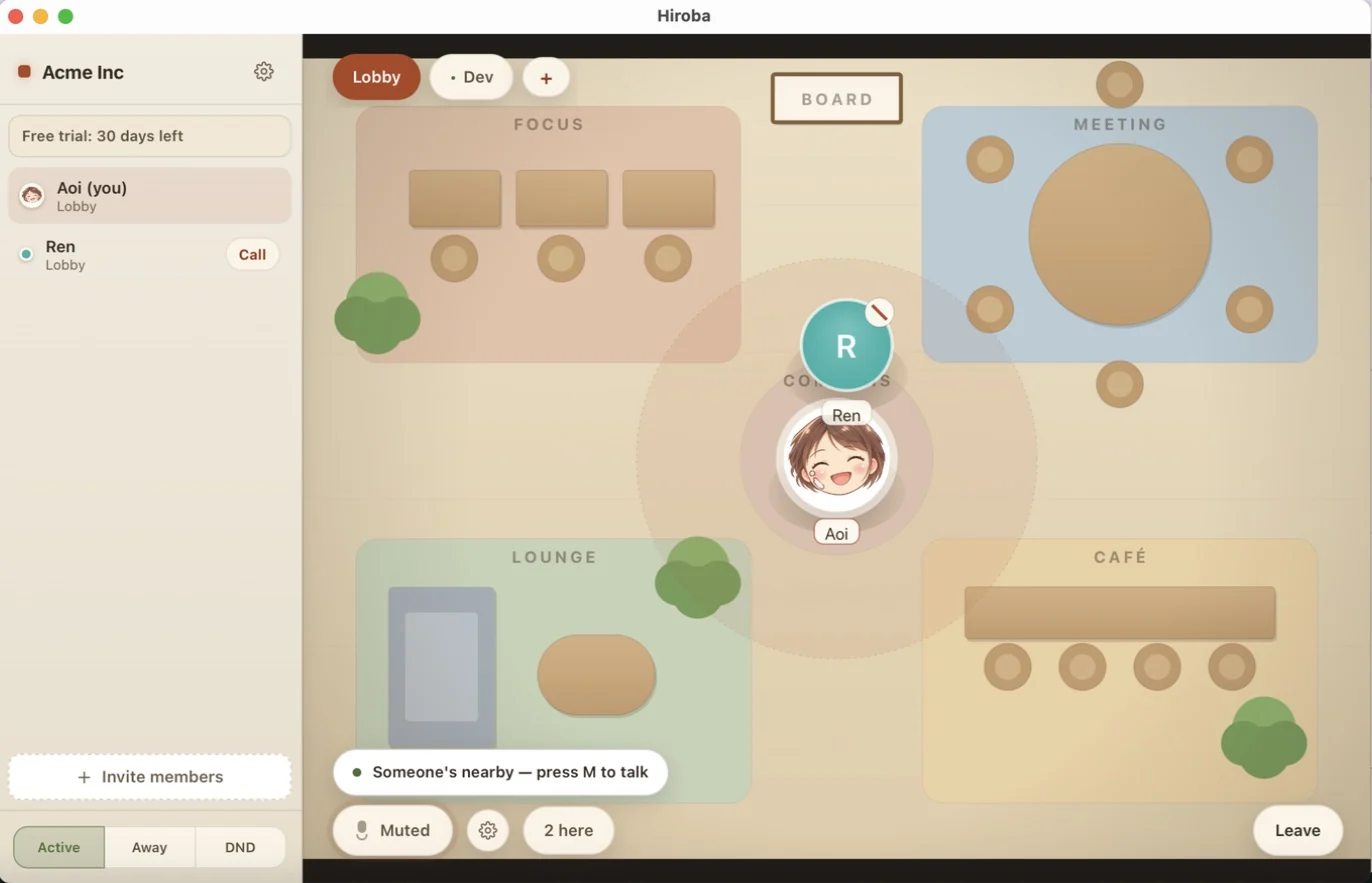
That's it. Start with two or three people, pick a time, and spend it in the office together.
Creating an organization starts a 30-day free trial automatically. No card required, and no limits on people or features. After the trial, it's $2 per seat per month.
Download Hiroba→FAQ
Do invited teammates need to create an account?
Not if they join in the browser. They open the invite link, enter a name, and they're in. To use the desktop app, they sign in with Google, GitHub, or an email address.
How long are invite links valid?
Seven days from when they're issued. If one expires, ask an admin to issue a new one. Admins can also revoke unused invites from "Manage invitations".
What happens after the free trial?
After the 30-day trial, the hosted edition costs $2 per seat per month. When the trial ends, admins see a button to start a subscription, and payment details are entered on Stripe's checkout page.
How do I get back in next time?
The app remembers that you're signed in, so next time you open it and click "Enter Hiroba".
Can I belong to more than one organization?
Yes. While signed in, open the organization menu on the sign-in screen to switch between your organizations or choose "+ New organization".